ADVERTISING OPPORTUNITY
Promote Your Brand Here
Get in touch to discuss advertising opportunities.

Creating a website has never been more accessible. Whether you want to build a personal portfolio, launch a blog, promote a business, or showcase your services, WordPress provides flexible tools to bring your ideas online without requiring advanced coding skills.
In this guide, you’ll learn how to create a WordPress website step by step in 2026, from choosing a domain name and hosting provider to designing your pages, installing essential plugins, and preparing your website for launch.
Whether you’re a beginner, freelancer, student, or small business owner, these practical steps will help you build a professional website with confidence.
WordPress is a popular content management system (CMS) that allows you to create and manage websites. You can use it to build blogs, business websites, portfolios, online stores, and many other digital experiences.
There are two commonly discussed versions:
This tutorial focuses on self-hosted WordPress using WordPress.org software because it offers extensive control over your website, themes, plugins, and hosting environment.
Your domain name is your website’s address on the internet. A good domain should be easy to remember, simple to spell, and relevant to your brand.
For example, a personal portfolio might use your name, while a business could use its company name.
Consider these tips when choosing a domain:
.com, .org, or a suitable country-specific extension.Choose carefully because changing your domain later can require redirects and additional SEO work.
Web hosting stores your website’s files, database, images, and other resources so visitors can access your website online.
When choosing a hosting provider, look for:
Beginners can often start with a suitable shared hosting plan. As traffic and resource requirements increase, you can consider upgrading to managed WordPress hosting or another hosting solution.
Avoid choosing a hosting provider based on price alone. Reliability, security, support, and performance are important for your website’s long-term success.
After purchasing your domain and hosting, connect them so your domain points to your hosting account.
Depending on your provider, this usually involves updating your domain’s nameservers or DNS records.
DNS changes may take some time to become visible across the internet. Follow your hosting provider’s instructions and verify that the domain points to the correct server before proceeding.
Once the connection works, enable HTTPS with an SSL certificate. HTTPS helps protect data exchanged between your website and its visitors.
Many hosting providers offer a one-click WordPress installer through their hosting dashboard.
The general process is:
Your dashboard is usually accessible through your site’s WordPress login address, unless your host or security configuration uses a different login path.
If your host does not provide an automatic installer, you can follow the official installation instructions from the WordPress documentation.
Security tip: Use a unique administrator password, avoid sharing administrator accounts, and enable multifactor authentication when available.
Your theme controls much of your website’s visual appearance, including layouts, typography, colors, and design elements.
A good theme should be responsive, accessible, regularly maintained, and suitable for your website’s purpose.
When selecting a theme, consider:
Start with a simple design rather than installing a theme packed with features you will never use.
You can explore free themes in the WordPress dashboard under Appearance → Themes → Add New Theme. Review the theme’s details, update history, and support information before installing it.
Before publishing your website, create the main pages visitors need to understand who you are and what you offer.
Your homepage should explain your website’s purpose and guide visitors toward important actions.
Include a clear headline, a short introduction, relevant visuals, and links to your main services or content.
Introduce yourself, your organization, or your business. Explain your background, experience, values, and the people you help.
If you provide services, explain what you offer and how potential clients can contact you. If you are building a portfolio, display relevant projects and describe your role in each one.
Use your blog to publish useful articles, tutorials, guides, and insights related to your subject.
Provide appropriate contact information and a simple contact form if needed. Make sure the information is accurate and that your form works correctly.
You may also need a privacy policy and other legal pages depending on your website’s functionality, audience, and applicable laws.
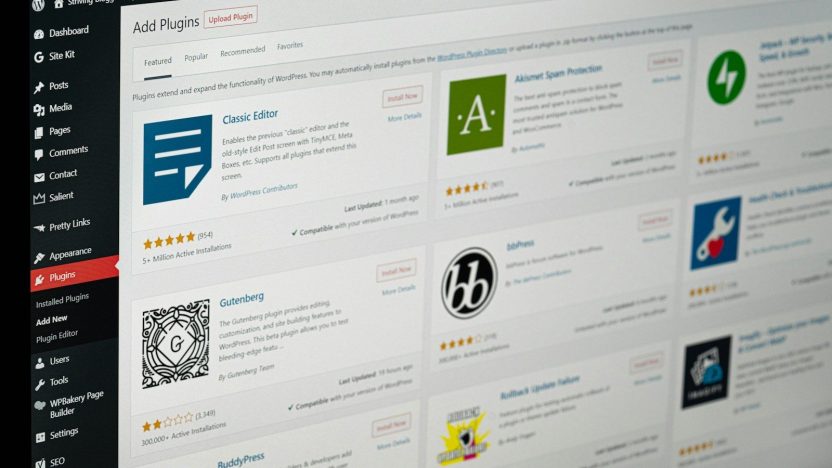
Plugins add features to WordPress without requiring you to develop everything from scratch.
However, installing too many plugins can increase maintenance work and introduce compatibility or security problems.
Choose plugins based on your actual requirements.
Common plugin categories include:
Before installing a plugin, review its features, compatibility, maintenance history, support, and reputation. Keep it updated and remove plugins you no longer need.
Remember that a plugin does not automatically guarantee better rankings, complete security, or improved performance. Configure and test each tool properly.
Once your pages and theme are ready, customize the website to match your brand.
Start by choosing a consistent color palette, readable fonts, and a clear layout.
Follow these design principles:
Keep navigation simple: Visitors should be able to find important information quickly.
Prioritize readability: Use appropriate font sizes, sufficient spacing, and strong text contrast.
Design for mobile: Check that menus, buttons, images, and content work on smaller screens.
Use consistent branding: Apply the same visual style across your main pages.
Make calls to action clear: Buttons such as “Contact Me,” “View Projects,” or “Get Started” should tell visitors what happens next.
Avoid excessive animations, intrusive pop-ups, and unnecessary decorative elements that distract visitors from the main content.
Search engine optimization helps search engines understand your pages and can improve their eligibility to appear in relevant search results.
Start with these fundamental practices:
An SEO plugin can make some tasks easier, but it cannot guarantee first-page rankings. Focus on helping visitors find accurate, useful answers rather than writing solely for an SEO score.
For more guidance, read the official Google Search Central SEO Starter Guide.
A professional website should be reasonably fast, reliable, and secure.
For performance, consider optimizing image sizes, enabling suitable caching, reducing unnecessary scripts, and using hosting appropriate for your site’s needs.
For security, keep WordPress core, themes, and plugins updated. Use strong passwords, limit unnecessary administrator access, maintain backups, and enable HTTPS.
Before adding caching or security features, check whether your hosting provider already supplies similar functionality. Overlapping tools can sometimes cause conflicts.
Test your website after major changes to make sure pages, forms, navigation, and other essential features still work.
Before announcing your new website, review it as if you were a first-time visitor.
Use this launch checklist:
If your site was built on a staging environment, carefully check the migration and visibility settings before making it public.
After testing, make your website available to visitors and share it through appropriate channels.
You can promote it through social media, professional profiles, newsletters, and relevant communities.
Launching the website is only the beginning. Ongoing maintenance helps keep it useful and reliable.
Create a simple maintenance routine that includes:
Do not install every update blindly on a critical website without considering compatibility and having a recovery plan. For important sites, test significant changes in a staging environment first.
Beginners often make avoidable mistakes that affect usability, security, and maintenance.
Installing too many plugins: Every plugin adds another component to evaluate and maintain. Install only what you need.
Choosing a design before defining your goals: Decide what visitors should accomplish before building the layout.
Ignoring mobile users: A website that looks good on a desktop may be difficult to use on a phone.
Publishing incomplete content: Remove placeholder text and provide clear, accurate information.
Neglecting backups: A backup is useful only if it can be restored when needed.
Expecting immediate SEO results: Search visibility takes time and depends on many factors beyond the website’s design.
Avoiding these mistakes will give you a stronger foundation for your website.
Yes. WordPress provides a dashboard, themes, and plugins that allow beginners to create many types of websites without extensive coding knowledge. Some technical skills may still be needed for advanced customization.
Yes. You can build many websites using themes, the WordPress block editor, and suitable plugins. HTML, CSS, JavaScript, or PHP may be useful for more advanced customization, but they are not required for every website.
The cost depends on your domain, hosting, theme, plugins, design requirements, and whether you hire a professional. A basic website can often be built with relatively modest expenses, while complex websites may require a larger budget.
A simple website may take a few days, while a larger website with custom features, extensive content, or e-commerce functionality may take several weeks or longer. The timeline depends on preparation, complexity, and testing.
WordPress provides a flexible foundation for SEO, but rankings are not automatic. Helpful content, site structure, performance, accessibility, technical configuration, and competition all influence search visibility.
Yes. Regular updates, backups, security checks, and functional testing help keep your website dependable over time.
Creating a WordPress website in 2026 is achievable when you approach the process step by step. Choose a suitable domain and hosting provider, install WordPress, select a reliable theme, create essential pages, and configure the tools your website actually needs.
Before launch, prioritize mobile usability, security, performance, accessibility, and helpful content. After publishing, maintain your website and improve it based on real visitor needs.
A successful website is not simply one that looks attractive. It should communicate clearly, work reliably, and make it easy for visitors to find the information or services they need.
Start with a clear goal, build a strong foundation, and improve your website as your skills and requirements grow.