ADVERTISING OPPORTUNITY
Promote Your Brand Here
Get in touch to discuss advertising opportunities.

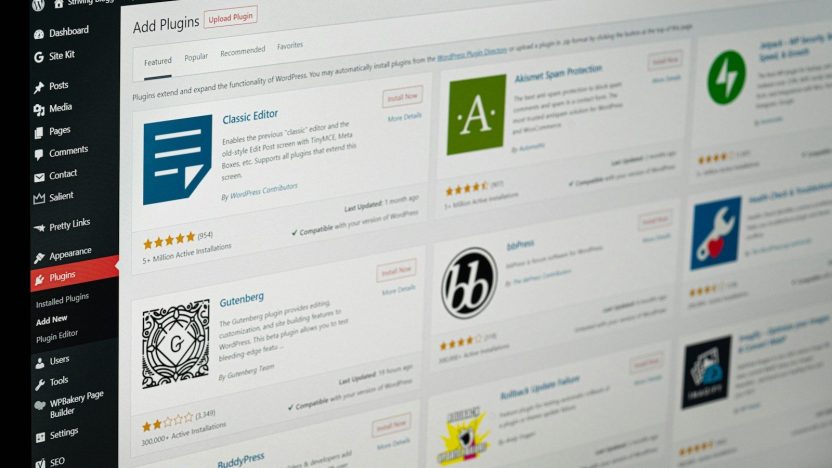
Learning how to secure a WordPress website is essential for bloggers, business owners, developers, and anyone who manages an online presence. A website can contain valuable content, personal information, user accounts, contact forms, and important business data. Without proper security measures, it may become vulnerable to unauthorized access, malware, data loss, and other online threats.
WordPress is a widely used website platform, but its security depends on more than the software itself. Outdated plugins, weak passwords, poorly configured hosting, and excessive user permissions can increase the risk of security problems. WordPress recommends keeping software updated, using appropriate access controls, and planning for recovery in case something goes wrong. Official WordPress security guidance.
The good news is that you do not need to be a cybersecurity expert to improve your website’s protection. With a few practical steps, you can reduce common risks and make your website more reliable.
In this guide, you will learn 12 essential ways to secure a WordPress website in 2026, including login protection, SSL, backups, security plugins, malware prevention, and regular maintenance.
Secure WordPress website protection is essential for bloggers, business owners, developers, and anyone managing an online presence. Learning how to secure a WordPress website helps protect your content, user accounts, contact forms, and important data from unauthorized access, malware, and common security threats.
WordPress is a powerful platform, but website security requires regular maintenance and careful configuration. Outdated plugins, weak passwords, excessive user permissions, and unreliable backups can increase security risks.
In this comprehensive guide, you will discover 12 practical, actionable ways to effectively secure your WordPress website against modern cyber threats in 2026. We cover essential defense strategies, including hardening your login protection, implementing two-factor authentication (2FA), installing SSL certificates, establishing reliable automated backups, leveraging robust security plugins, and selecting a secure hosting infrastructure.
One of the most important steps in website security is keeping your software up to date.
WordPress releases updates that may include security fixes, bug fixes, compatibility improvements, and new features. Themes and plugins also receive updates to address problems and maintain compatibility.
Running outdated software can leave known vulnerabilities unpatched.
Before updating a website, create a backup, particularly if the update is large or affects a critical plugin. Review compatibility information and test important functionality after updating.
Remove plugins and themes that you no longer use instead of leaving them installed indefinitely.
Tip: Check your WordPress dashboard regularly for available updates. If possible, test major changes on a staging website before applying them to your live site.
Weak passwords are an easy target for automated login attacks. Passwords based on names, birthdays, common words, or predictable number sequences are particularly risky.
Create a long, unique password for every account that can access your website.
Avoid usernames such as admin when creating new accounts, but remember that changing a username alone does not provide meaningful protection against every attack.
Two-factor authentication (2FA) adds another verification step after a user enters a password. Depending on the method, this might involve an authenticator app, a security key, or another supported verification method.
If someone discovers your password, 2FA can help prevent them from logging in without the second factor.
Prioritize phishing-resistant security keys or passkeys when supported by your chosen authentication system.
A WordPress security plugin can help monitor your website and reduce common risks. Depending on the product, its features may include malware scanning, login attempt limits, firewall rules, security notifications, and file-change monitoring.
Choose a plugin based on your website’s needs instead of installing several overlapping security plugins.
| Plugin | Typical use |
|---|---|
| Wordfence Security | Firewall features, security scans, and login protection |
| Solid Security | Account protection and security hardening features |
| All-In-One Security (AIOS) | Login security and additional hardening controls |
Visit each plugin’s official WordPress directory page to check its current features, compatibility, maintenance status, and pricing before installation.
Important: A plugin cannot guarantee that a website will never be hacked. Keep it updated, configure its features correctly, and maintain independent backups.
WordPress login pages are often targeted by automated bots that attempt to guess usernames and passwords.
You can reduce this risk by combining multiple safeguards.
You can also change the default login URL with a reputable plugin if you want to reduce automated login traffic. However, hiding the login URL is an additional measure, not a substitute for authentication security.
If your website allows public registration, set the default role to Subscriber unless a different role is genuinely required. Never assign Administrator privileges to ordinary visitors.
HTTPS encrypts the connection between your website and its visitors. This helps protect information exchanged through login forms, contact forms, and other website features.
An SSL/TLS certificate is required to enable HTTPS.
https:// address.Many hosting providers include SSL certificates at no additional cost. Confirm what your hosting plan supports and follow its setup instructions.
HTTPS is essential, but it does not by itself protect a website from weak passwords, vulnerable plugins, or malicious code.
Backups are one of the most important parts of a website security plan. If your website is compromised, damaged by an update, or accidentally modified, a clean backup may help you restore it.
A useful backup should include both your WordPress files and your database.
| Website type | Suggested starting point |
|---|---|
| Personal blog | Weekly backups, with more frequent backups when publishing often |
| Business website | Daily backups or a schedule matched to data changes |
| Online store | Frequent backups that reflect orders and customer activity |
These are starting points, not universal rules. Choose a schedule that matches how often your website changes and how much information you can afford to lose.
A backup is only useful if you can restore it successfully.
Not every person who accesses your website needs full administrative control.
WordPress provides different roles to help control what users can do.
| Role | Typical purpose |
|---|---|
| Administrator | Full website management |
| Editor | Managing and publishing content |
| Author | Publishing and managing their own posts |
| Contributor | Writing posts for review |
| Subscriber | Managing a basic user profile |
Use the least-privilege principle: give each account only the permissions required for its work.
Review the user list periodically. Remove accounts that are no longer needed, investigate unfamiliar administrator accounts, and change permissions when responsibilities change.
If you work with freelancers or collaborators, provide individual accounts rather than sharing one administrator login.
Every additional plugin or theme introduces code that may need maintenance. Poorly maintained software can create security and compatibility problems.
Review your installed software regularly.
Do not install a plugin solely because it promises many features. Choose tools that solve a genuine problem and come from sources you trust.
A web application firewall (WAF) can filter suspicious traffic before it reaches your website or while requests are being processed, depending on how the firewall is deployed.
A suitable firewall may help block malicious requests, automated attacks, and some attempts to exploit known vulnerabilities.
The best option depends on your hosting setup, traffic volume, budget, and technical requirements.
Avoid adding firewall rules without understanding their impact. Incorrect settings can block legitimate visitors or interfere with forms, APIs, and other website features.
Regular monitoring helps you detect unusual activity before it becomes a larger problem.
Depending on your tools, you may be able to review login events, administrator changes, plugin installations, file modifications, and security alerts.
If you suspect a compromise, contact your hosting provider, secure your administrator and email accounts, preserve useful logs, and investigate before restoring a clean backup. Avoid simply deleting suspicious files without understanding the cause.
Website security also depends on the server environment. A secure WordPress installation can still be affected by poor hosting configuration or a compromised hosting account.
When selecting a hosting provider, look for:
WordPress currently recommends modern PHP and database versions along with HTTPS. Check the official WordPress requirements and ask your hosting provider which versions and protections are available on your plan.
Keep your hosting control panel and associated email account secure as well. Someone who gains access to your hosting account may be able to change website files or databases directly.
Use this checklist to review the essential protections on your website.
You do not have to implement every advanced security feature at once. Start with updates, strong passwords, 2FA, backups, and appropriate user permissions.
Changing the login URL may reduce unwanted traffic, but attackers can use other routes or discover the new URL. Combine it with strong authentication and rate limiting.
Several plugins with overlapping features can cause conflicts and make maintenance harder. Choose a small set of tools that you understand and can keep updated.
HTTPS encrypts connections, but it cannot fix vulnerable software, compromised accounts, or unsafe server settings.
A backup stored only in the same hosting account may be lost if that account is compromised or the server fails. Keep an independent copy.
Delaying security updates can leave known issues unresolved. Maintain a routine for updating, backing up, and checking important website functionality.
WordPress can be a secure platform when it is properly maintained. Keep software updated, use strong authentication, restrict permissions, and maintain reliable backups. No website platform is entirely risk-free.
Not every website requires the same plugin setup, but many site owners benefit from additional login protection, monitoring, and firewall features. Review what your hosting provider already supplies before adding another tool.
The right frequency depends on how often your content and data change. A personal blog might begin with weekly backups, while websites that process frequent transactions or user submissions may need much more frequent backups.
No. It can reduce some automated login attempts, but it is not a complete security solution. Use it alongside strong passwords, two-factor authentication, and login rate limiting.
Contact your hosting provider, restrict further unauthorized access, change compromised credentials from a trusted device, and investigate the cause. Restore from a known-clean backup if appropriate, update vulnerable components, and verify that the problem has been resolved before considering the site recovered.
Free plugins can provide useful protections, although available features differ. Compare the current feature set, maintenance status, and support options before choosing one. Security also depends on your configuration, hosting, updates, and account practices.
Learning how to secure a WordPress website is an ongoing responsibility rather than a one-time task. Good security comes from several layers working together: updated software, strong passwords, two-factor authentication, sensible user permissions, reliable backups, monitoring, and secure hosting.
Start with the basics and build a maintenance routine that you can consistently follow. Review your users, check for updates, verify backups, and investigate unexpected changes instead of waiting for a security incident.
Whether you manage a personal blog, a portfolio, or a business website, these practices can help reduce common risks and make recovery easier if something goes wrong.
A secure website is not just about protecting technology. It is also about protecting your content, your visitors, and the trust you build with your audience.
Suggested internal links: Add links to your existing articles about building a WordPress website, speeding up WordPress, modern website design trends, and AI tools for web designers and developers. Use the actual published URLs for each post.
Publishing tip: Before publishing, verify the current features of any security plugin you mention and ensure that your hosting setup supports the recommendations you give. The article is educational guidance, not a guarantee that any particular configuration will prevent every attack.